
TIFF files are heavy. They carry high-resolution pixels, but they also carry baggage. In professional print shops and institutional archives, that baggage often includes GPS coordinates, camera serial numbers, photographer names, and internal workflow tags. Leaving this data embedded in a file destined for public access or long-term storage creates unnecessary privacy risks and compliance headaches.
Removing metadata from TIFFs is not just about scrubbing a photo before posting it online. It is a structural necessity for standardized digital preservation. Whether you are digitizing historical documents, preparing images for offset printing, or managing sensitive institutional records, knowing how to strip EXIF, IPTC, and XMP data without corrupting the image quality is a critical skill.
Why TIFF Metadata Matters in Professional Workflows
The Tagged Image File Format (TIFF) was designed for flexibility, not simplicity. Unlike JPEGs, which hide metadata in APP1 segments, TIFFs store information in Image File Directories (IFDs). These directories can contain baseline tags, EXIF sub-IFDs for camera data, IPTC blocks for editorial info, and XMP packets for custom application data.
In an archival context, this richness becomes a liability. Consider a museum digitizing 19th-century photographs using modern scanners. The resulting TIFFs might embed the scanner’s IP address, the technician’s name, and the exact timestamp of the scan. If these files are published online or shared with external researchers, that personal and operational data leaks alongside the historical content.
For print workflows, metadata adds bloat. A pre-press system doesn’t need to know what lens was used to capture a product shot. It needs clean raster data. Removing non-essential metadata reduces file size slightly and ensures compatibility with older RIP (Raster Image Processor) software that may choke on proprietary vendor tags.
| Metadata Type | Content Examples | Risk Level |
|---|---|---|
| EXIF | Camera model, ISO, aperture, timestamps, GPS coordinates | High (Privacy/Location) |
| IPTC | Photographer name, copyright, keywords, captions | Medium (Attribution/PII) |
| XMP | Software version, editing history, custom workflow tags | Low-Medium (Workflow Leakage) |
| GeoTIFF Tags | Spatial reference systems, coordinate transformations | High (Geosensitive Data) |
Manual Removal: When Photoshop Is Enough
If you are dealing with a handful of files, manual removal is straightforward. Adobe Photoshop remains the industry standard for this task because it provides visual confirmation of what is being deleted.
To remove metadata manually:
- Open the TIFF file in Photoshop.
- Navigate to File > File Info. This window displays all embedded properties.
- Review the tabs for Basic, Camera Data, and Raw Data.
- Click the Remove button next to specific fields, or use the "Clear All" option if available.
- Save the file via File > Save As, ensuring you do not overwrite the original until you have verified the changes.
This method gives you granular control. You might want to keep the copyright notice but strip the GPS location. However, this approach breaks down quickly when volume increases. Processing hundreds of scanned pages one by one is inefficient and prone to human error.
Batch Processing with Command-Line Tools
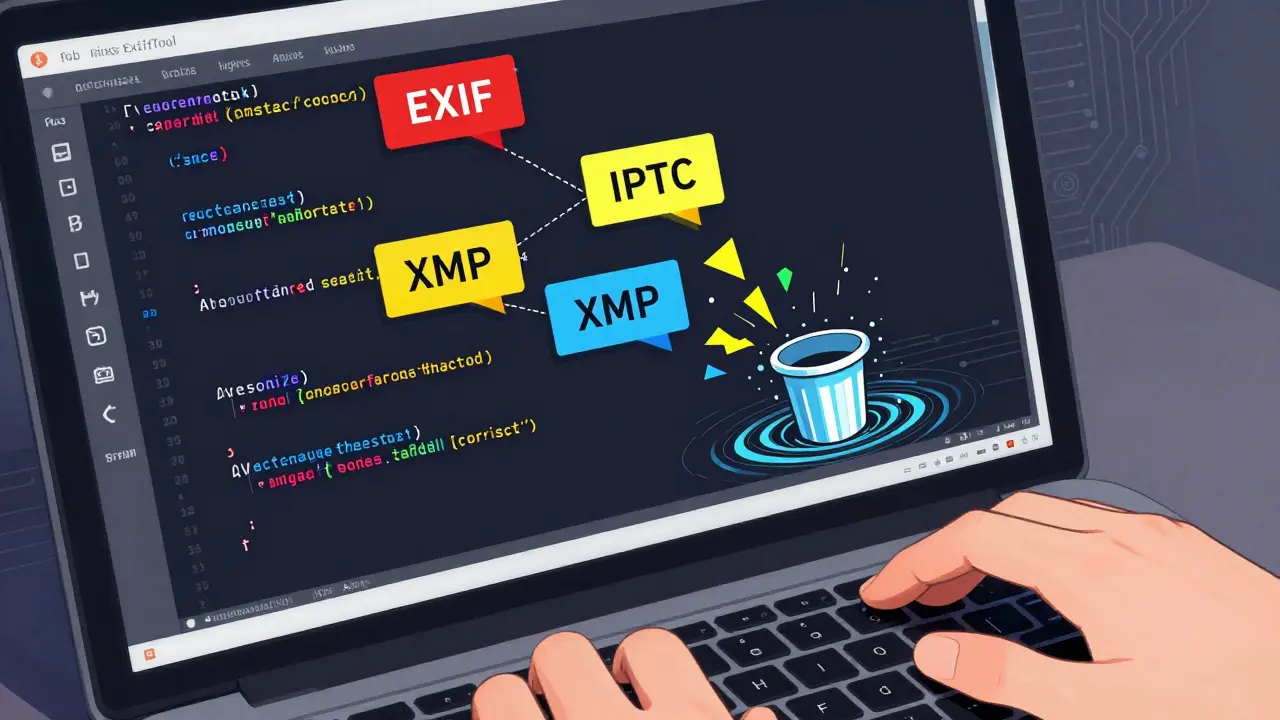
For large-scale archival projects, command-line utilities are superior. They allow for recursive directory processing, scripting, and integration into automated digitization pipelines. The most widely respected tool in this space is ExifTool, which is an open-source Perl library and command-line application for reading, writing, and editing meta information in a wide variety of files including images.
ExifTool supports virtually every metadata format found in TIFFs. To strip all metadata from a single TIFF file, the command is simple:
exiftool -all= image.tiffFor batch processing an entire archive folder recursively, you would use:
exiftool -r -ext tiff -all= ./archive_folder/The -r flag enables recursive scanning of subdirectories, while -ext tiff limits the operation to TIFF files only. This preserves other file types in the directory structure. ExifTool also allows selective removal. If you need to keep copyright information but remove GPS data, you can specify:
exiftool -gps:all= image.tiffOne advantage of ExifTool is its audit trail capability. By adding the -json output flag before stripping, you can export the existing metadata to a database or log file. This satisfies compliance requirements that demand proof of what data was removed and from which file.
Browser-Based Solutions for Quick Sanitization
Not every workflow requires server-side scripts or installed software. For smaller batches or individual checks, browser-based tools offer a frictionless alternative. Vaulternal's Metadata Remover processes images entirely within the browser using WebAssembly. This means the TIFF file never leaves your device; it is parsed locally, stripped of metadata, and re-saved without recompression.
This client-side approach is particularly useful for verifying metadata presence before committing to a full batch process. You can upload a sample TIFF, inspect the hidden IFD tags, and see exactly what will be removed. Since the tool runs locally, there is no risk of uploading sensitive archival materials to a third-party server. The image pixels remain identical to the source, ensuring no loss of fidelity for print-ready outputs.
Python Automation for Custom Workflows
Institutions with development resources often build custom metadata management systems using Python. Libraries like PIL (Pillow) and tifffile provide programmatic access to TIFF structures.
Using Pillow, you can iterate through TIFF tags and selectively delete them:
from PIL import Image
import os

img = Image.open("scan.tiff")
tags = img.tag_v2
# Iterate and delete specific tags as needed
for tag_id in list(tags.keys()):
    if tag_id == 271: # Example: Delete specific tag ID
        del tags[tag_id]
img.save("clean_scan.tiff")
However, Pillow’s native support for complex EXIF/IPTC/XMP hierarchies can be limited compared to dedicated libraries. Many developers wrap ExifTool in Python using the pyexiftool package. This combines the power of ExifTool’s parsing engine with Python’s flexibility for handling large datasets, logging, and database integration.

Special Considerations: Multi-Page and GeoTIFFs
Standard TIFFs are often single-page, but archival scans frequently result in multi-page TIFFs. Each page in a multi-page TIFF has its own IFD chain. When removing metadata, ensure your tool processes all pages. Some basic editors only strip metadata from the first page, leaving sensitive data embedded in subsequent frames.
GeoTIFFs present another challenge. These files embed spatial reference data directly into the TIFF structure to enable mapping applications. Standard metadata removers might strip essential georeferencing tags, rendering the file useless for GIS analysis. In such cases, selective removal is mandatory. You must preserve tags related to coordinate systems (e.g., ModelPixelScaleTag, ModelTiepointTag) while removing user-specific metadata like creation dates or software versions.
Best Practices for Archival Integrity
Before implementing any metadata removal strategy, establish clear policies. Define what constitutes "sensitive" data in your context. For public archives, this usually means PII (Personally Identifiable Information), GPS locations, and internal network identifiers. For commercial prints, it might mean removing editing software histories to protect intellectual property.
- Backup First: Always work on copies. Preserve the original master files with intact metadata in a secure, offline repository.
- Verify Output: After stripping, use a metadata viewer to confirm that all targeted fields are gone. Visual inspection of the image is not enough; hidden tags persist even if they are not displayed in preview panes.
- Document the Process: Keep logs of which tools were used, what commands were executed, and when the cleaning occurred. This audit trail is crucial for regulatory compliance (GDPR, HIPAA, etc.).
- Test on Samples: Run your batch script on a small subset of files first. Check for errors, especially with multi-page or compressed TIFF variants (LZW, ZIP).
Metadata removal is not a one-time fix. It should be integrated into your ingestion workflow. As new scans enter the system, they should be automatically sanitized before being added to the accessible collection. This proactive approach minimizes the risk of accidental data leaks and maintains consistency across your archive.
Does removing metadata affect image quality?
No. Metadata is stored separately from the pixel data in TIFF files. Properly stripping EXIF, IPTC, or XMP tags does not alter the resolution, color profile, or compression of the image. However, avoid re-saving the file through lossy formats like JPEG during the process, as that would degrade quality.
Can I remove metadata from multi-page TIFFs?
Yes, but you must use a tool that supports multi-page structures. Tools like ExifTool handle multi-page TIFFs natively, processing each page's IFD chain. Basic image editors may only strip metadata from the first page, leaving sensitive data in subsequent pages.
Is it safe to use online tools for TIFF metadata removal?
It depends on the sensitivity of your data. Uploading confidential archival materials to unknown servers poses a privacy risk. Client-side tools that process files locally in the browser, or command-line tools run on your own machine, are safer options for sensitive content.
What is the difference between EXIF and IPTC metadata?
EXIF (Exchangeable Image File Format) primarily contains technical camera settings and capture data like timestamps and GPS. IPTC (International Press Telecommunications Council) focuses on editorial information such as authorship, copyright, captions, and keywords. Both are commonly embedded in TIFFs and often need removal for privacy reasons.
How do I verify that metadata has been completely removed?
Use a dedicated metadata viewer or inspector tool. Right-clicking a file and checking "Properties" in Windows or macOS often hides deep nested tags. Tools like ExifTool or browser-based inspectors can reveal remaining hidden fields, ensuring a thorough clean.